A now-playing touchscreen for a Sendspin player on a Raspberry Pi 2
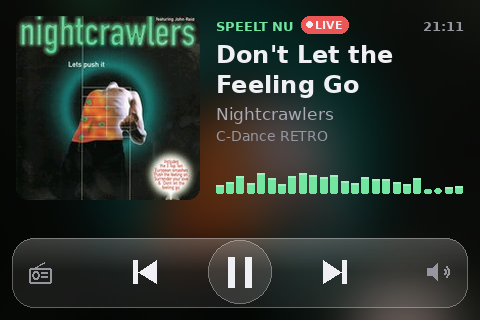
One of my old Raspberry Pi 2s has a second life as a speaker for Music Assistant: it runs sendspin-cli, the C++ player for MA's Sendspin multi-room protocol, and plays through the headphone jack into an amplifier. Works great, but it's a black box — so I put a cheap 3.5" 480×320 SPI touchscreen on it (a goodtft board with an ILI9486 controller and XPT2046 resistive touch) and built a now-playing screen for it. The UI is in Dutch, as it lives in our living room.
Getting the display running on a current kernel
The vendor's LCD-show script dates from a different era: it overwrites config.txt, disables KMS and installs fbcp to copy the HDMI framebuffer to the SPI display. On Raspberry Pi OS trixie that's asking for trouble. The kernel already ships everything needed — the board has the same pinout as the OzzMaker PiScreen, so two lines are enough:
dtparam=spi=on
dtoverlay=piscreen,drm,speed=24000000,rotate=0
The drm flag selects the modern DRM/KMS ili9486 driver instead of the old fbtft one, and also brings up the touch controller. One quirk: that driver's native orientation is landscape, so rotate=0 gives you 480×320 and rotate=90 (what every guide tells you) gives portrait.
No desktop, just pixels
There's no X or Wayland on this Pi, and with 1 GB RAM I didn't want a browser either. The app is a single Python script that draws frames with Pillow and writes them straight into /dev/fb0. Pillow has no packer for RGB565, so the conversion is done with a few lookup tables and ImageChops.add, which keeps it all in C and avoids a per-pixel Python loop. Touch comes from evdev, with a small three-tap calibration screen because the axes on this board didn't match the vendor's calibration.
Getting the data without a token
The obvious way to show what's playing is to poll Home Assistant or the Music Assistant API, but both need a token. It turned out the Pi already has everything it needs locally:
- sendspin-cli has a control socket.
statusreturns state, title and volume as plain text;play,pause,next,vol 40andmute ondo what you'd expect. That's the playback controls sorted, and they're guaranteed to target this player. - The screen is its own Sendspin client. Using aiosendspin the app registers with the metadata, artwork, controller and visualizer roles, but not player. Music Assistant recognises such a client as a separate DISPLAY device and pushes title, artist, album, progress and cover art to it.
Two gotchas. A client only gets auto-approved by MA if it offers unpaired ("guest") access in its pairing config; without that it connects fine, but all its roles stay inactive and nothing arrives. And the display starts out in a group of its own. Sendspin has a switch command that moves a client to the next playing group, so when sendspin-cli is playing but the display shows a different title, the display switches until the titles match. MA restores the grouping after a reconnect.
The only place a token is needed is the station picker, which uses the MA websocket API to list the radio stations and start one on the player.
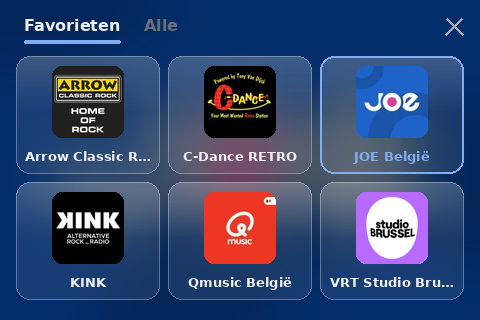
Looking good on a Pi 2
The background is a blurred, darkened version of the cover art, with "frosted glass" panels for the controls and popups: a more strongly blurred crop of the background, a white tint, a subtle shine at the top and a thin light edge. Computing that is too slow to do every frame, but it only depends on the cover and the panel's position, so each panel is rendered once per cover and pasted afterwards. The accent colour is picked from the cover as well (dominant saturated hue, brightened until it's readable), and the background's brightness is capped so dim text stays legible on light, black-and-white covers.
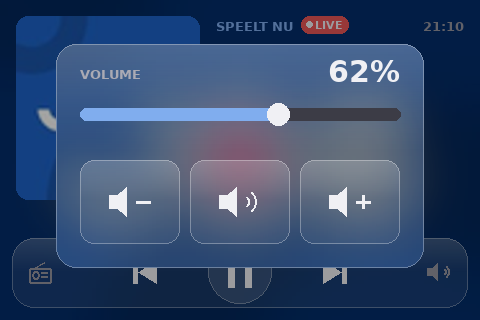
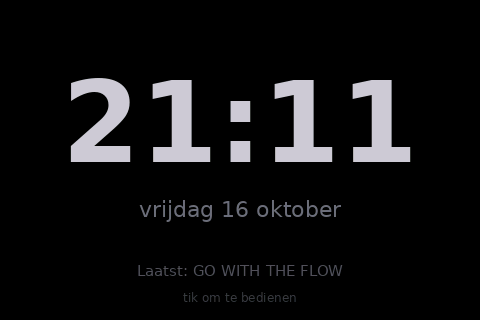
Volume is a small speaker icon that opens a glass popup with a tappable slider; long titles scroll; after five minutes of silence it switches to a big clock.
Only send what changes
The SPI bus is the real bottleneck: a full 480×320 frame is 300 KB and takes about 0.1 s to push to the panel. So anything that animates — scrolling titles and the spectrum — only updates its own strip of the framebuffer. My first scrolling version still rendered the text with FreeType on every step and cost 65 ms per frame; pre-rendering the text once into a mask and just sliding a window over it brought that down to 9 ms. It also flickered once a second, because the full redraw for the progress bar briefly put back a title-less strip — fixed by compositing the moving parts into the full frame before sending it.
A visualizer the Pi doesn't have to compute
The visualizer role is the nice surprise: Music Assistant analyses the audio itself and sends 24 spectrum bands around 20 times per second. They arrive about 8 seconds ahead of the audio, timestamped in server time, so the client buffers them and converts each timestamp to the local moment the sound actually plays. My first attempt used a log scale starting at 40 Hz, which left the second bar permanently flat — the lowest log bands were narrower than the server's FFT resolution. The mel scale fixed that. I checked frequencies and timing with a generated sweep from 40 Hz to 16 kHz, followed by one-second beeps.
Numbers
With the spectrum running, the display app uses about 20% of one core, sendspin-cli about 5%, and the whole Pi sits around 8% at 38 °C. Plenty of headroom on a ten-year-old board.
The one thing I couldn't do in software is dimming: the backlight on this board is hardwired to 3.3 V. That's a soldering job for another day.